
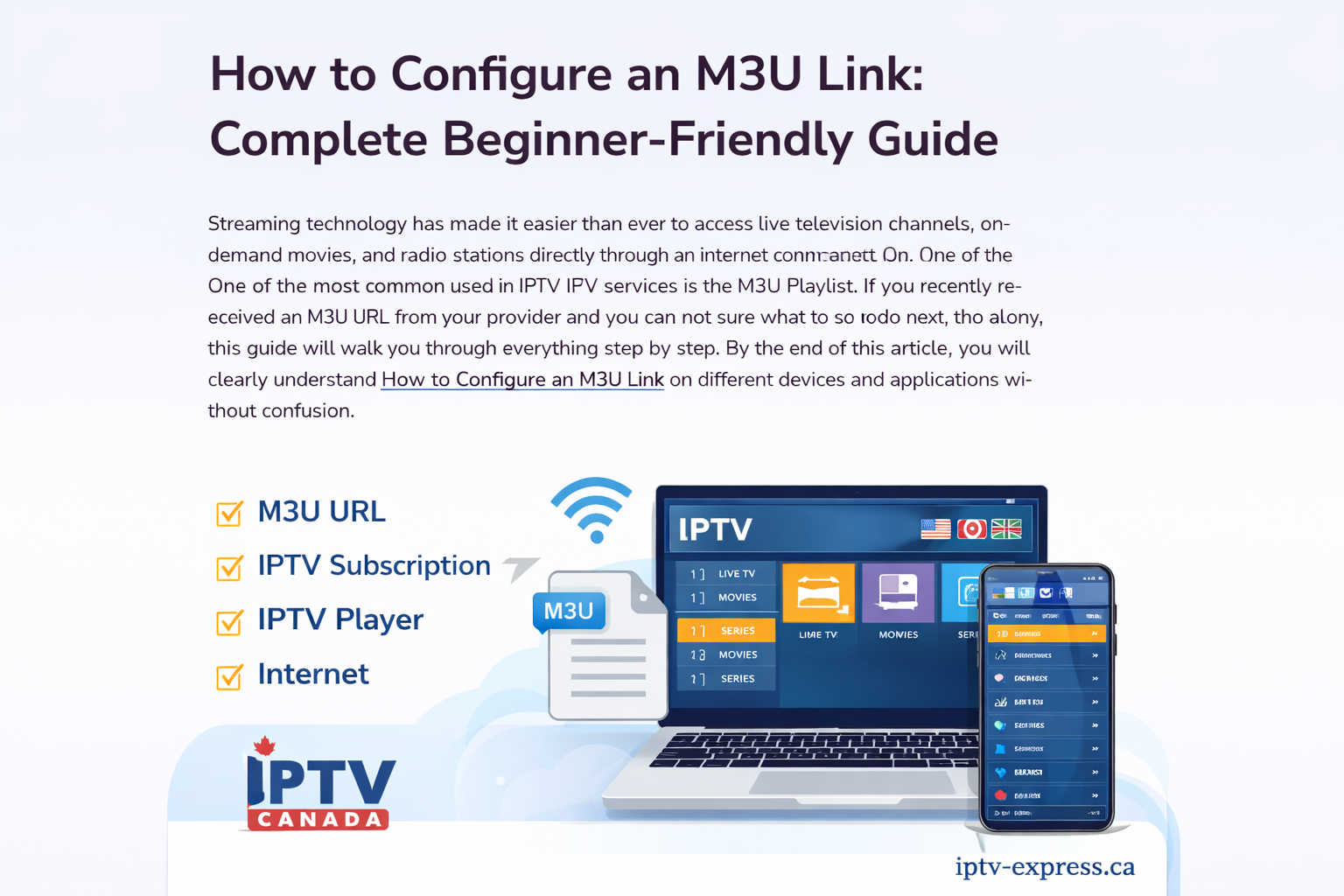
Streaming technology has made it easier than ever to access live television channels, on-demand movies, and radio stations through an internet connection. Today, more users prefer IPTV because it offers flexibility and convenience, especially those searching for reliable IPTV Canada services.
One of the most common formats used in IPTV services is the M3U playlist. Understanding How to Configure an M3U Link properly is essential if you want your channels to load correctly and work without errors.
If you recently received an M3U URL from your provider and you are not sure what to do next, don’t worry. This guide will walk you step by step through How to Configure an M3U Link on different devices and applications without confusion.
What Is an M3U Link?
An M3U link is a playlist file format that contains streaming URLs. Instead of storing video files, it stores references to media streams. When you load the link into a compatible media player, the app reads the playlist and displays the available channels or content categories. Understanding How to Configure an M3U Link properly ensures that all channels load correctly without errors.
M3U playlists are widely used in IPTV services because they are simple, flexible, and compatible with many devices including Windows PCs, Android phones, Smart TVs, and streaming boxes. Many users searching for the best IPTV Canada providers rely on M3U playlists for stable streaming, which is why learning How to Configure an M3U Link is essential for a smooth viewing experience.
Why You Need to Configure It Properly
Many beginners receive their playlist URL and assume it will work automatically. However, understanding How to Configure an M3U Link correctly ensures:
- Channels load without errors
- Categories appear properly organized
- Electronic Program Guide (EPG) works
- Buffering issues are minimized
Proper configuration improves stability and overall streaming performance.
What You Need Before Starting
Before moving forward, make sure you have:
- A valid M3U URL from your IPTV provider
- A stable internet connection (preferably 20 Mbps or higher for HD)
- A compatible IPTV player
- Updated device software
Once these elements are ready, the process becomes very simple.
Best Applications That Support M3U Playlists
Most IPTV players support M3U format. Here are common options:
- VLC Media Player (PC & Mac)
- IPTV Smarters (Android, iOS, Windows)
- TiviMate (Android TV)
- Smart IPTV (Smart TVs)
Each application has slightly different steps, but the configuration logic remains similar.
Step-by-Step Guide: How to Configure an M3U Link on Windows
If you are using a Windows PC, follow these instructions carefully.
Step 1: Install a Compatible Player
Download and install VLC Media Player or another IPTV application that supports playlist URLs. Always use official websites or trusted app stores.
Step 2: Open Network Stream Option
In VLC for example:
- Open the application
- Click on “Media”
- Select “Open Network Stream”
This option allows you to paste your playlist URL.
Step 3: Paste the M3U URL
Copy the M3U link provided by your IPTV service and paste it into the network URL field. Double-check that there are no extra spaces before or after the link.
Click “Play.”
If everything is correct, the channel list should load automatically.
Step 4: Save Playlist (Optional)
For easier access next time, you can save the playlist inside your media player. This prevents you from pasting the URL again every time you open the app.
Following these steps ensures you understand exactly How to Configure an M3U Link on a Windows device.
How to Configure an M3U Link on Android
Android devices are very popular for IPTV streaming. The process is similar but slightly adapted to mobile apps.
- Download IPTV Smarters or another IPTV app.
- Open the application.
- Select “Load Your Playlist or File/URL.”
- Choose “M3U URL.”
- Enter a playlist name (any name you prefer).
- Paste your M3U link.
- Click “Add User” or “Login.”
The app will begin loading channels. After a few seconds, categories such as Live TV, Movies, and Series should appear.
Configuring an M3U Link on Smart TV
Smart TVs require a compatible IPTV app from the TV’s app store. Once installed:
- Open the IPTV application
- Go to Playlist Settings
- Choose Add Playlist
- Select URL option
- Paste your M3U link
- Save and restart the app
After rebooting, channels should be visible and ready to stream.
Common Problems and Solutions
Even when you know How to Configure an M3U Link, small issues may appear. Here are the most frequent ones:
Playlist Not Loading
- Check if your IPTV subscription is active before trying to load the playlist.
- Confirm the link is copied correctly
- Restart your router
Buffering or Freezing
- Use a wired Ethernet connection
- Close background apps
- Reduce stream quality if possible
EPG Not Showing
- Make sure your provider included an EPG URL
- Refresh the playlist inside the app
Most issues are related to internet stability or expired subscriptions.
Tips for Better Performance
To optimize your IPTV experience:
- Keep your app updated
- Clear cache regularly
- Restart your device once a week
- Avoid sharing your playlist with others
- Use a modern device with enough RAM
Good configuration combined with stable internet guarantees smoother playback.
Is It Safe to Use an M3U Playlist?
The M3U format itself is completely legal because it is simply a playlist file. However, legality depends on the IPTV provider and the content rights they hold. Always choose reliable and legitimate services to avoid risks.
Final Thoughts
Learning How to Configure an M3U Link is much easier than many beginners think. The process only requires a compatible IPTV player, a valid playlist URL, and a stable internet connection. Whether you are using Windows, Android, or a Smart TV, the configuration steps follow the same basic principle: install the app, paste the link, and load the channels.
Once properly set up, you can enjoy live television, movies, and series without complicated technical steps. Take your time to enter the link correctly, keep your device updated, and follow the optimization tips mentioned above.
With the right setup, your IPTV experience will be smooth, organized, and enjoyable every time you stream.