
Introduction
Android TV is one of the best platforms for IPTV streaming because it combines strong performance with easy access to IPTV apps through the Google Play Store. If you are searching for how to install IPTV on Android TV, the setup process is simple once you choose the right IPTV app and enter your subscription details correctly.
In this guide, you will learn the full installation process, recommended apps, setup requirements, troubleshooting solutions, and expert tips for smooth streaming with IPTV Canada on Android TV.
What Is IPTV and Why Use It on Android TV?
IPTV (Internet Protocol Television) allows users to stream live TV, sports, movies, and VOD content over the internet instead of traditional cable or satellite, making it a popular choice for users looking for the best IPTV Canada services.
Android TV is ideal for IPTV because it offers:
- Full access to the Google Play Store
- Smooth HD and 4K streaming support
- Easy navigation with remote control
- Compatibility with multiple IPTV players
Android TV provides one of the most flexible IPTV setups available today.
Requirements to Install IPTV on Android TV
Before installing IPTV, make sure you have the following:
- Android TV device (Smart TV, Nvidia Shield, Chromecast with Google TV, or Android TV Box)
- Stable internet connection
- Access to Google Play Store
- Active IPTV subscription
- IPTV login details (M3U URL or Xtream Codes API)
Recommended Internet Speed for IPTV Streaming
| Streaming Quality | Recommended Speed |
|---|---|
| SD | 5 Mbps+ |
| HD | 10–15 Mbps |
| 4K / Ultra HD | 25 Mbps+ |
A stable connection is more important than high speed alone.
Best IPTV Apps for Android TV
Choosing the right IPTV app is important for performance and stability, especially when using a reliable IPTV subscription.
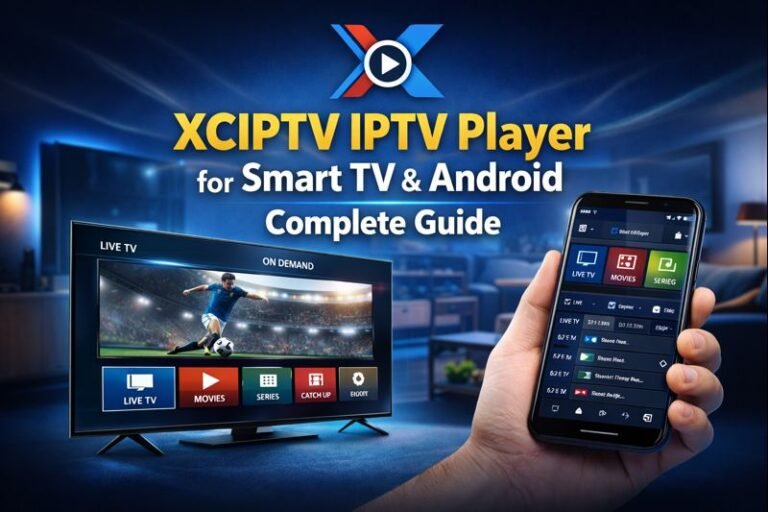
IPTV Smarters Player
Why it’s popular:
- Supports Xtream Codes & M3U
- Clean interface
- EPG support
- Smooth playback
TiviMate IPTV Player
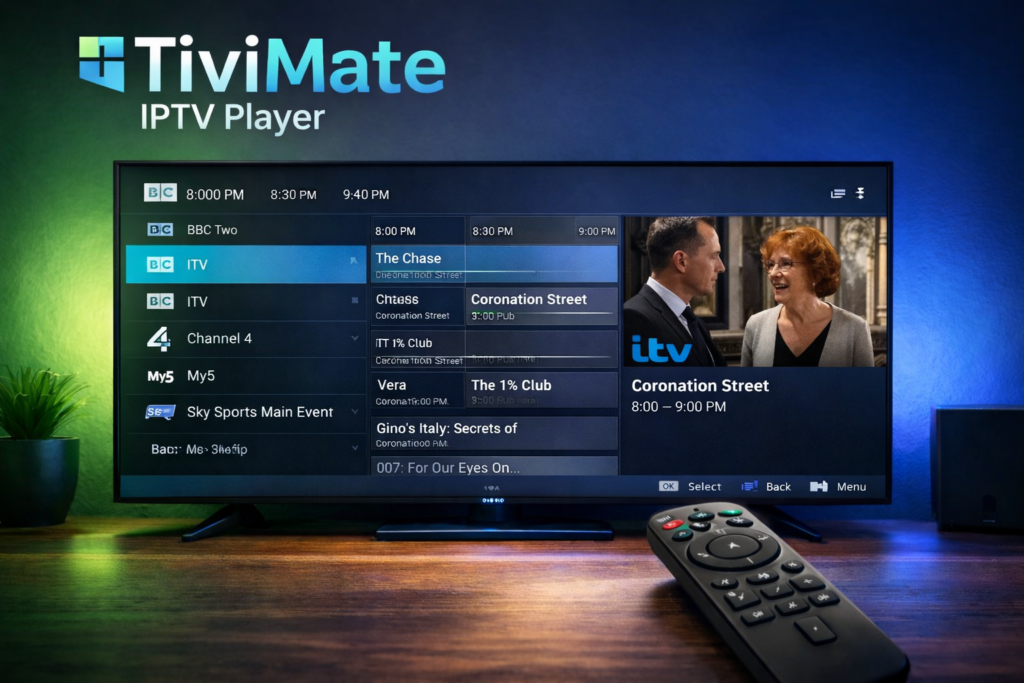
Best for advanced users:
- Premium TV-style layout
- Strong EPG integration
- Playlist organization
- Favorites & categories
GSE Smart IPTV
Best for compatibility:
- M3U playlist support
- Advanced decoding options
- Works across multiple devices
Method 1: Install IPTV on Android TV Using Google Play Store
This is the easiest and most recommended method when learning How to Install IPTV on Android TV, as it ensures better compatibility, automatic updates, and a smooth streaming experience.
Step 1: Open Google Play Store
From the Android TV home screen:
Apps → Open Google Play Store
Step 2: Search for IPTV App
Type one of the following:
- IPTV Smarters Player
- TiviMate
- GSE Smart IPTV
Step 3: Install the App
Select the app and click Install.
Wait until installation is complete.
Step 4: Launch the IPTV App
Open the app and allow required permissions.
Step 5: Add Your IPTV Subscription
You will usually see two login options:
Option 1: Xtream Codes API (Recommended)
Enter:
- Username
- Password
- Server URL
Option 2: M3U Playlist URL
Enter:
- Playlist Name
- M3U URL
Once added, channels and VOD content should load automatically.
Method 2: Install IPTV on Android TV Using APK (Sideload Method)
This method is useful if you are learning How to Install IPTV on Android TV and the app is not available in your region on the Google Play Store. Understanding How to Install IPTV on Android TV using the APK sideload method allows you to manually install the IPTV app from a trusted source and complete the setup without restrictions.
Always make sure to download APK files from official developer websites or reliable providers to ensure security while following the steps for How to Install IPTV on Android TV safely and correctly.
Step 1: Enable Unknown Sources
Go to:
Settings → Apps → Security & Restrictions
Enable Unknown Sources.
Step 2: Install Downloader App
Search for Downloader in the Play Store and install it.
Step 3: Download IPTV APK File
Open Downloader and enter a trusted APK link from the official developer.
Step 4: Install the APK
After download:
Click Install → Wait → Click Done
Step 5: Enter IPTV Login Details
Open the IPTV app and enter your:
- Xtream Codes
or - M3U Playlist
Channels will sync automatically.
IPTV Setup Tips for Best Performance
To improve streaming quality and ensure smooth IPTV playback on Android TV, follow these optimization tips:
Use Ethernet Instead of Wi-Fi
A wired connection reduces buffering and improves stability.
Choose the Right Video Decoder
Adjust Buffer Settings
If available, slightly increase buffer size to reduce freezing.
Enable EPG (Electronic Program Guide)
Add EPG URL in app settings for better channel navigation.
Common IPTV Problems and Fixes
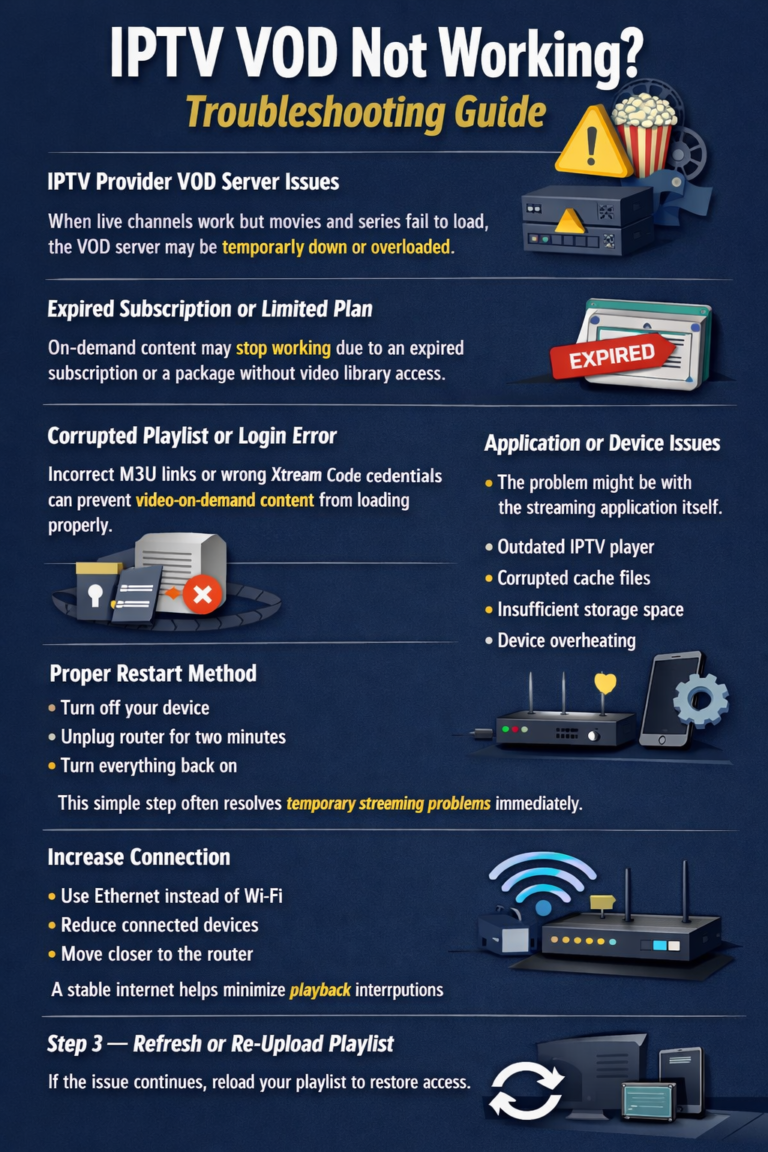
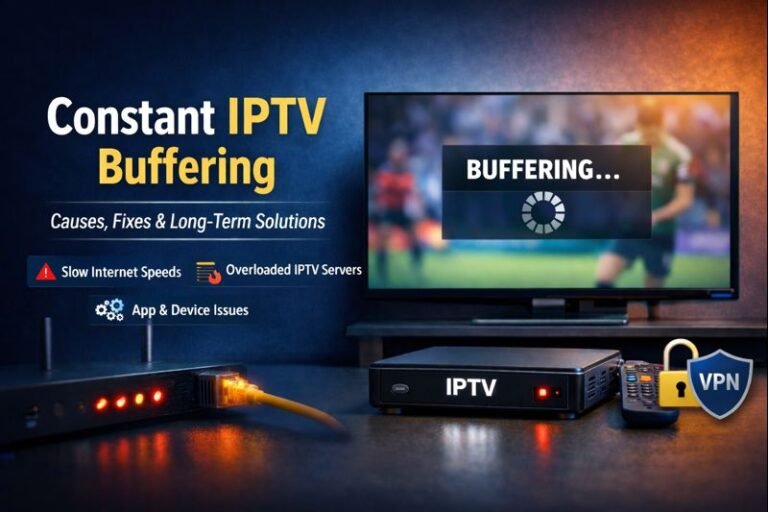
IPTV Buffering Issues
Causes:
- Weak Wi-Fi
- ISP throttling
- Server overload
Fixes:
- Switch to Ethernet
- Restart router
- Avoid peak streaming hours
- Consider using a premium VPN
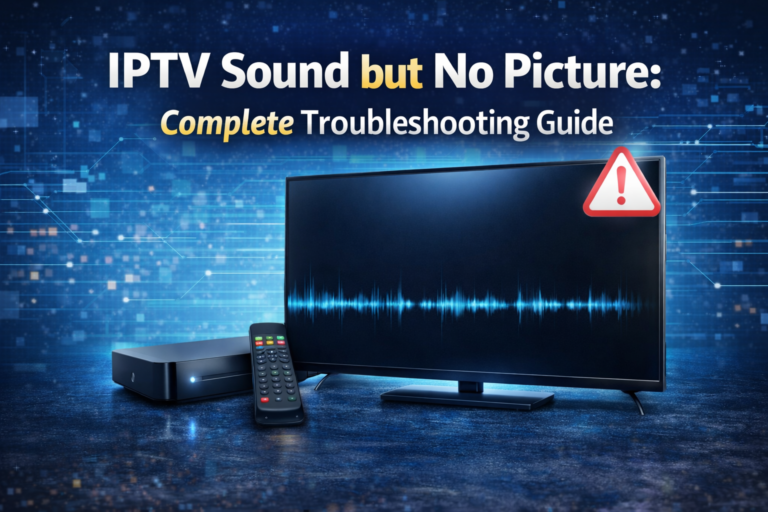
Black Screen Problem
Causes:
- Wrong decoder
- Unsupported codec
Fix:
- Switch between hardware and software decoding
- Restart IPTV app
Channels Not Loading
Causes:
- Expired subscription
- Wrong login details
- Playlist error
Fix:
- Double-check credentials
- Reload playlist
- Contact IPTV provider
App Crashing
Fix:
- Clear cache
- Update the app
- Reinstall IPTV player
Is IPTV Legal?
IPTV technology itself is legal. However, legality depends on whether the IPTV provider has proper broadcasting rights.
To stay safe:
- Choose reputable providers
- Avoid suspicious low-cost services
- Follow local streaming laws
Advantages of IPTV on Android TV
Users prefer Android TV for IPTV because it offers:
- Wide IPTV app compatibility
- Smooth HD & 4K streaming
- Easy remote navigation
- Flexible player options
- Stable performance
Android TV remains one of the best platforms for IPTV streaming.
Final Thoughts
Learning How to Install IPTV on Android TV is simple when you follow the correct steps and choose a reliable IPTV app. Many users want to understand How to Install IPTV on Android TV using either the Google Play Store or APK sideloading, and once you know How to Install IPTV on Android TV properly, the setup becomes quick and straightforward.
With a stable internet connection and a quality IPTV subscription, you can enjoy live TV, sports, movies, and series directly on your Android TV device without buffering or interruptions.