
Introduction
Installing IPTV on an LG Smart TV is one of the most popular solutions for users who want to watch live TV, sports, movies, and series without relying on traditional cable services. Many users search daily for how to install IPTV on LG Smart TV, especially because LG televisions run on webOS, which works differently from Android-based TVs.
In this complete guide, you will learn everything you need to know about installing IPTV on LG Smart TV for IPTV Canada users, including requirements, recommended IPTV apps, step-by-step installation methods, troubleshooting tips, and best practices for smooth streaming.
What Is IPTV and Why Use It on LG Smart TV?
How to Install IPTV on LG Smart TV (Complete Step-by-Step Guide) is designed to help users understand the full setup process clearly and easily. This guide walks you through everything from choosing the right IPTV app to configuring your subscription correctly, ensuring a smooth and reliable streaming experience on LG Smart TVs. By following each step carefully, you can avoid common issues such as black screens, buffering, or channel loading errors.
What Does IPTV Mean?
IPTV (Internet Protocol Television) allows you to stream TV content using an internet connection instead of satellite or cable, making it a popular choice for users searching for the best IPTV Canada services.
Why IPTV Works Well on LG Smart TV
Using IPTV directly on an LG Smart TV offers several advantages:
- No external devices required
- Clean and simple interface
- Easy navigation using LG remote
- High-quality streaming
Things to Know Before Installing IPTV on LG Smart TV
Before following How to Install IPTV on LG Smart TV (Complete Step-by-Step Guide), there are a few important things you should understand to avoid setup issues later. LG Smart TVs operate on webOS, which means they do not support Android APK files. As a result, IPTV apps must be downloaded directly from the LG Content Store, and only compatible IPTV players will work properly.
LG Smart TV Operating System
LG Smart TVs run on webOS, which means:
- APK files are not supported
- IPTV apps must be installed from LG Content Store
IPTV Subscription Requirement
To install IPTV on LG Smart TV, you must have an active IPTV subscription with:
- M3U playlist URL
- OR Xtream Codes (username, password, server URL)
Requirements to Install IPTV on LG Smart TV
To follow How to Install IPTV on LG Smart TV (Complete Step-by-Step Guide) successfully, you need an LG Smart TV running webOS, a stable internet connection, and access to the LG Content Store. You also need an active IPTV subscription with valid login details such as an M3U playlist or Xtream Codes. Making sure your TV software is up to date will help avoid setup issues.
Basic Requirements
Before starting, make sure you have:
- LG Smart TV (webOS 4.0 or higher recommended)
- Stable internet connection
- Access to LG Content Store
- IPTV login credentials
Recommended Internet Speed
For the best IPTV experience:
- HD streaming: minimum 10 Mbps
- Full HD: 15 Mbps
- 4K streaming: 25 Mbps or more
Best IPTV Apps for LG Smart TV
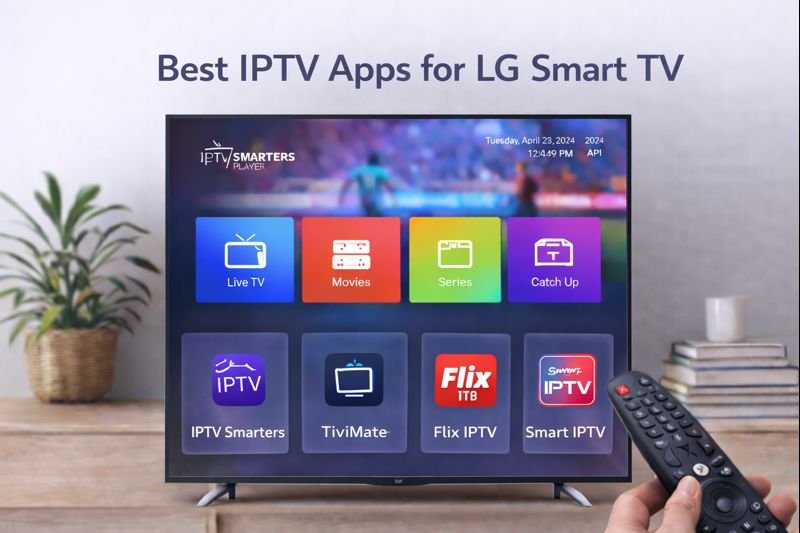
The best IPTV apps for LG Smart TV are IPTV Smarters Player and Smart IPTV (SIPTV), both available in the LG Content Store. IPTV Smarters is user-friendly and supports Xtream Codes or M3U playlists, while Smart IPTV works well if Smarters is not available. These apps help Canadian users stream IPTV smoothly after following How to Install IPTV on LG Smart TV (Complete Step-by-Step Guide).
IPTV Smarters Player (Recommended)
When following How to Install IPTV on LG Smart TV (Complete Step-by-Step Guide), IPTV Smarters Player is the most recommended app for LG Smart TVs. It is easy to install from the LG Content Store and supports both Xtream Codes and M3U playlists. IPTV Smarters offers a smooth interface, fast channel loading, and reliable performance, making it ideal for users who want a simple and stable IPTV setup on LG Smart TV.
Why IPTV Smarters Is the Best Option
- Easy to install
- Supports Xtream Codes & M3U
- Live TV, Movies, Series, Catch-up
- Beginner-friendly interface
Smart IPTV (SIPTV)
When to Use Smart IPTV
- If IPTV Smarters is unavailable
- Stable performance
- Requires one-time activation fee
Method 1: How to Install IPTV Smarters on LG Smart TV
Step 1: Turn On Your LG Smart TV
Make sure your TV is connected to the internet.
Step 2: Open LG Content Store
- Press Home on the remote
- Open LG Content Store
Step 3: Search for IPTV Smarters Player
- Type IPTV Smarters Player
- Select the official app
- Click Install
Step 4: Launch IPTV Smarters
- Open the app
- Accept terms and conditions
Step 5: Log In to IPTV Smarters
Option 1: Xtream Codes API (Best Choice)
Enter:
- Username
- Password
- Server URL
Option 2: M3U Playlist
Enter:
- Playlist name
- M3U URL
Click Add User to complete setup.
Step 6: Start Watching IPTV
Once logged in, your IPTV content will load automatically:
- Live TV
- Movies
- TV Series
Method 2: How to Install Smart IPTV (SIPTV) on LG Smart TV
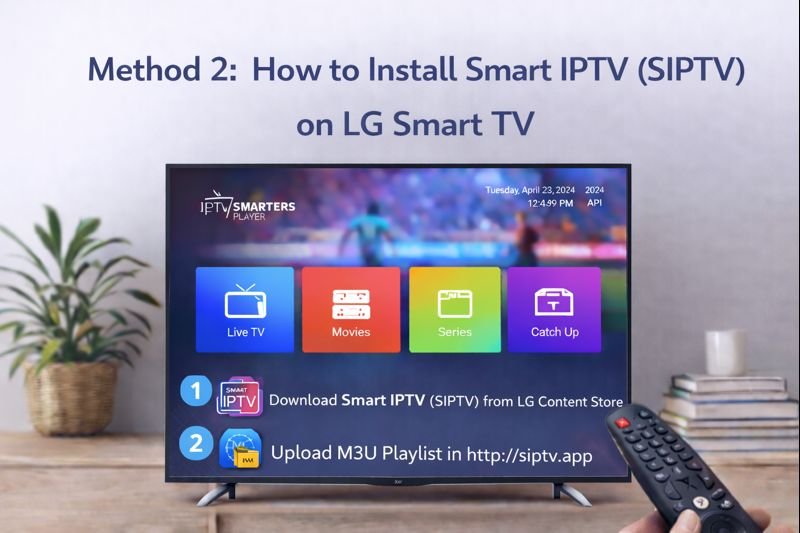
Step 1: Install Smart IPTV App
- Open LG Content Store
- Search Smart IPTV
- Install the app
Step 2: Find Your MAC Address
- Open Smart IPTV
- Write down the MAC Address displayed
Step 3: Upload M3U Playlist
- Visit Smart IPTV website from phone or PC
- Enter MAC Address
- Upload M3U playlist
- Click Send
Step 4: Restart Smart IPTV
- Restart the app
- Channels will load automatically
Common IPTV Problems on LG Smart TV and How to Fix Them
IPTV Black Screen Problem
The IPTV Black Screen Problem is a common issue on LG Smart TVs, where channels load but no picture appears. Even after following How to Install IPTV on LG Smart TV (Complete Step-by-Step Guide), this problem can still occur due to unstable internet, app issues, or IPTV server overload. Restarting the TV, checking your connection, or switching channels usually fixes the issue quickly.
Possible Causes
- Internet instability
- Codec issues
- IPTV server overload
Solutions
- Restart TV
- Check internet speed
- Try another channel
Channels Not Loading
Fixes
- Verify IPTV subscription
- Reload playlist
- Check server URL
IPTV App Not Found in LG Content Store
Solution
- Change LG Store region to Canada or USA
- Update LG Smart TV firmware
Best IPTV Settings for LG Smart TV
Internet Optimization
- Use Ethernet instead of Wi-Fi
- Avoid downloads while streaming
Recommended DNS Settings
- Google DNS: 8.8.8.8 / 8.8.4.4
- Cloudflare DNS: 1.1.1.1 / 1.0.0.1
Is IPTV Legal in Canada?
IPTV Legality Explained
IPTV technology itself is legal in Canada, but legality ultimately depends on whether the service follows copyright and broadcasting regulations. Even when users follow How to Install IPTV on LG Smart TV (Complete Step-by-Step Guide), it is important to understand that not all IPTV providers operate legally. Only services that hold proper broadcasting rights for their content are considered lawful.
To stay on the safe side, users should choose reputable IPTV providers, avoid extremely low-cost subscriptions, and ensure that the service complies with Canadian streaming laws. Understanding IPTV legality helps users enjoy their IPTV setup on LG Smart TV with confidence and without potential legal risks.
How to Stay Safe
- Choose reputable IPTV providers
- Avoid extremely cheap subscriptions
- Understand Canadian streaming laws
Advantages of Using IPTV on LG Smart TV
Key Benefits
- No external device needed
- High-quality streaming
- Easy setup
- Ideal for Canadian households
Tips to Improve IPTV Performance on LG Smart TV
To get the best possible streaming experience after following How to Install IPTV on LG Smart TV (Complete Step-by-Step Guide), it is important to optimize both your TV settings and internet connection. Small adjustments can make a noticeable difference in video quality, stability, and loading speed when using IPTV on an LG Smart TV.
Start by using a wired Ethernet connection instead of Wi-Fi whenever possible, as it provides more consistent bandwidth. Keeping your LG Smart TV firmware and IPTV apps updated is also essential, since updates often fix bugs and improve compatibility. Additionally, restarting your TV regularly, avoiding heavy downloads while streaming, and using a reliable IPTV subscription will help reduce buffering, freezing, and black screen issues, ensuring smooth and uninterrupted IPTV performance.
Best Practices
- Restart TV regularly
- Keep apps updated
- Use a reliable IPTV subscription
- Maintain stable internet connection
Final Thoughts
Installing IPTV on an LG Smart TV is simple when you follow the correct steps and use the right IPTV player. Whether you choose IPTV Smarters Player or Smart IPTV, this guide provides everything you need to enjoy a smooth and reliable IPTV experience.
If you are searching for how to install IPTV on LG Smart TV, this complete guide gives you a professional, SEO-optimized solution from start to finish.