
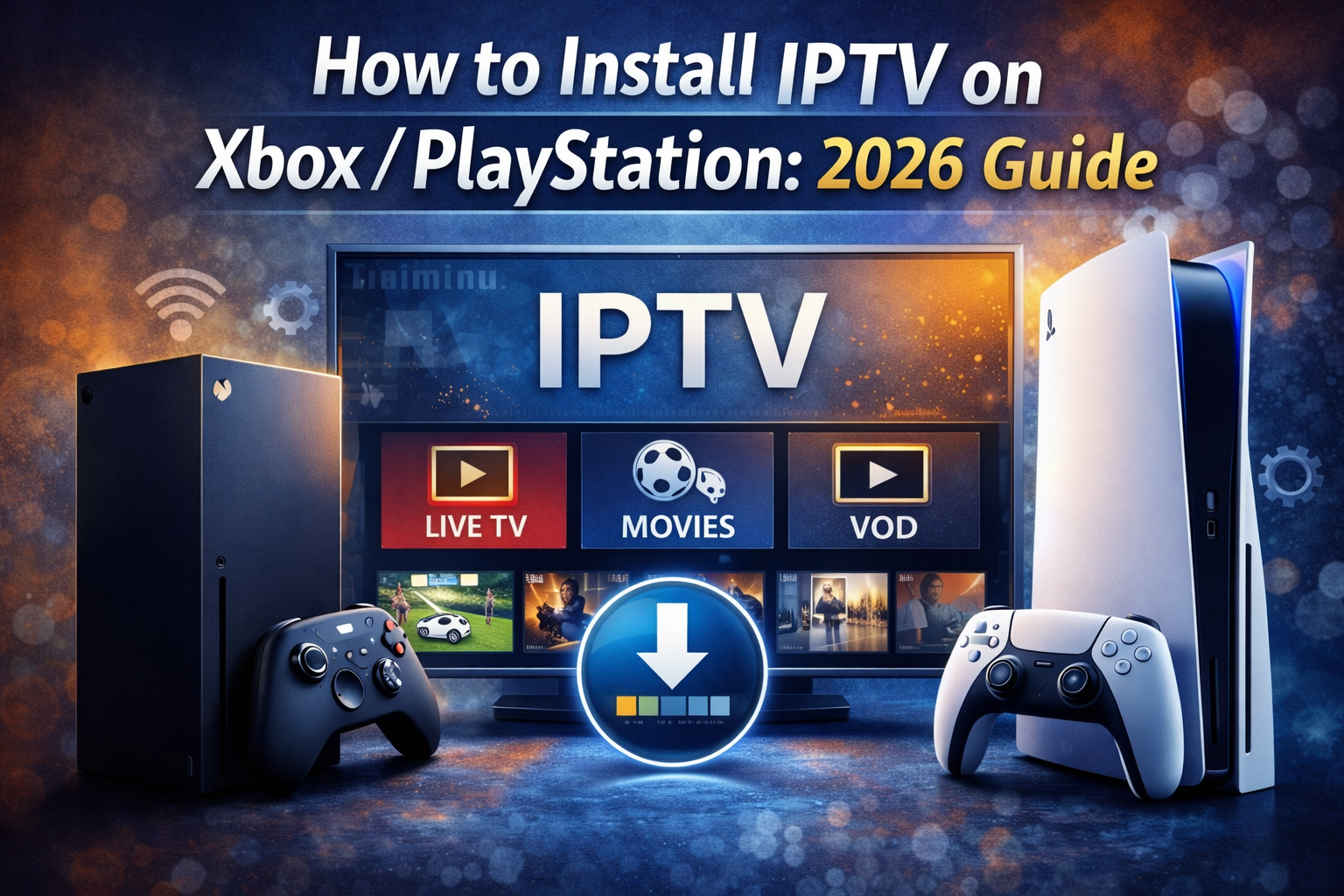
Gaming consoles are no longer just for playing video games. Today, devices like the Xbox Series X/S and PlayStation 5 (PS5) serve as complete entertainment hubs. Many users are now looking for ways to stream live television directly through their consoles. If you are wondering How to Install IPTV on Xbox / PlayStation, this guide will provide a step-by-step walkthrough to get you started in minutes.
Using a console for streaming offers a powerful hardware advantage, ensuring smooth playback and high-definition quality. However, the process is slightly different for each platform due to their respective app stores.
Why Use a Gaming Console for IPTV?
Before we dive into How to Install IPTV on Xbox / PlayStation, it’s important to understand the benefits. Consoles have superior processing power compared to most budget streaming sticks. This means less buffering and a faster user interface.
Additionally, if your console is already connected to your main TV, you don’t need to buy extra hardware like a Firestick or a Roku. Whether you are looking for the best iptv canada sports packages or international news, your Xbox or PlayStation can handle the stream with ease. Understanding How to Install IPTV on Xbox / PlayStation is the first step to turning your console into a media powerhouse.
How to Install IPTV on Xbox (One, Series S, Series X)
The Xbox ecosystem is very friendly towards IPTV applications because it shares a core with Windows. Here is the easiest method:
- Open the Microsoft Store: Go to the home screen and select the Store icon.
- Search for a Player: Look for “IPTV Smarters” or “MyIPTV Player.” These are highly rated for Xbox users.
- Download and Install: Select the app and click “Get” or “Install.”
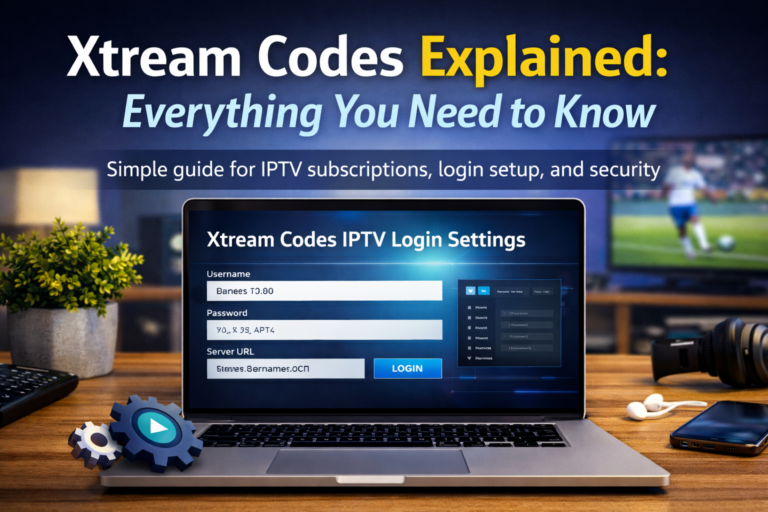
- Enter Your Details: Once opened, you will need your iptv subscription login (Username, Password, and Server URL).
Learning How to Install IPTV on Xbox / PlayStation on the Microsoft side is generally faster because the apps are natively supported in the store.
How to Install IPTV on PlayStation (PS4 & PS5)
PlayStation is a bit more restrictive. The PlayStation Store doesn’t always have dedicated IPTV apps in every region. If you can’t find a native app, you have two main workarounds to complete the task of How to Install IPTV on Xbox / PlayStation.
Method 1: The Plex Solution
Plex is available on the PS Store and allows you to integrate IPTV playlists.
- Install Plex on your PS4/PS5.
- Add your M3U playlist to the Plex Media Server on your computer.
- Sync it with your PlayStation app.
Method 2: The Web Browser Method
If you are struggling with How to Install IPTV on Xbox / PlayStation specifically on a PS5, you can use the hidden web browser to access web-based IPTV players. This requires entering a specific URL provided by your service provider to stream directly.
Setting Up Your Xtream Codes or M3U
Regardless of the device, you will need an active service. Most people searching for How to Install IPTV on Xbox / PlayStation already have their credentials ready.
- Xtream Codes: Usually involves a URL, Username, and Password.
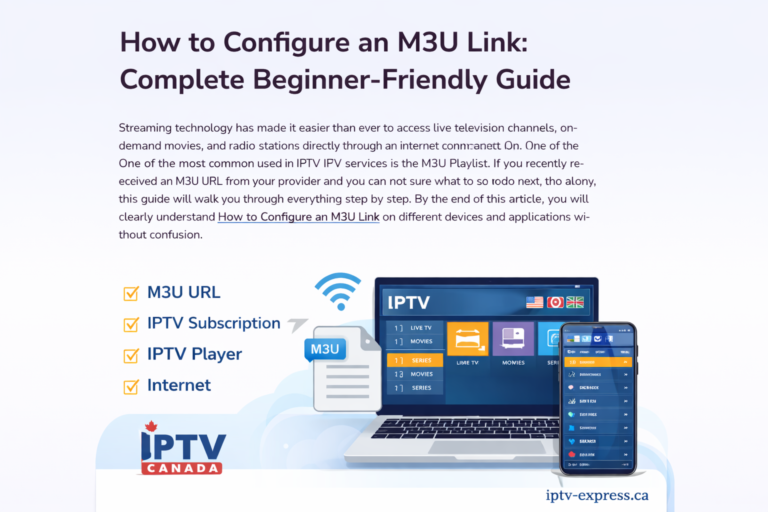
- M3U Link: A long URL that contains the entire channel list.
Using Xtream Codes is highly recommended for consoles because it’s much easier to type with a controller than a 100-character M3U link. This setup is crucial for users in regions like iptv canada who want a stable and organized channel list.
Improving Your Streaming Experience
Once you figure out How to Install IPTV on Xbox / PlayStation, you might face some common issues like buffering. To ensure the best quality:
- Use an Ethernet Cable: Wi-Fi can be unstable for 4K streaming.
- Check Your Speed: Ensure your internet is at least 25 Mbps.
- VPN Usage: Many users ask if they should use a VPN. If your ISP throttles gaming traffic, a VPN can actually help.
Troubleshooting Common Errors
If you followed the steps on How to Install IPTV on Xbox / PlayStation but the app isn’t loading, check these factors:
- Account Status: Is your iptv subscription still active?
- Server URL: Ensure there are no typos in the “http://” part of the link.
- App Updates: Make sure the player app is updated to the latest version in the console’s store.
If the problem persists after you learn How to Install IPTV on Xbox / PlayStation, try restarting your console to clear the cache.
Security and Privacy on Consoles
Gaming consoles are generally secure, but streaming through third-party apps always carries some risk. When you learn How to Install IPTV on Xbox / PlayStation, remember to use a unique password for your IPTV account.
For those looking for the best iptv canada experience, privacy is key. Using a VPN at the router level is a great way to protect your Xbox or PlayStation since consoles don’t always support VPN apps directly. Security should be a priority when you look into How to Install IPTV on Xbox / PlayStation.
Final Thoughts on Console Streaming
The versatility of modern consoles is incredible. Knowing How to Install IPTV on Xbox / PlayStation opens up a world of entertainment beyond just gaming. It’s a cost-effective and powerful way to enjoy live TV.
Whether you prefer the easy installation on Xbox or the workaround methods for PlayStation, the result is a high-quality streaming experience. Now that you know How to Install IPTV on Xbox / PlayStation, you can enjoy your favorite shows and sports on the biggest screen in your house.