
Introduction
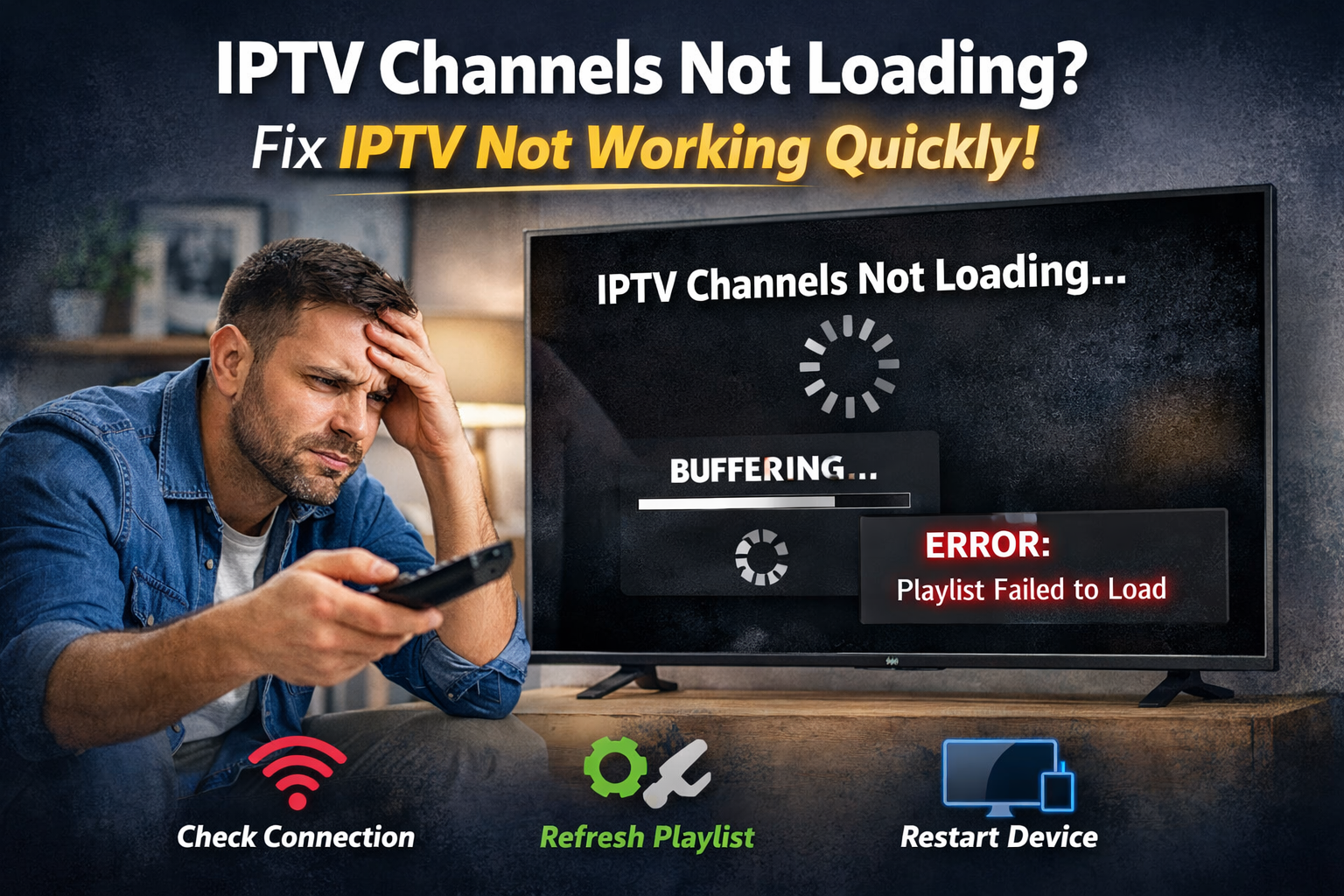
If you’re trying to watch your favorite content and suddenly your IPTV channels are not loading, you’re not alone. This is one of the most common IPTV problems users face—whether you’re using a Smart TV app, Android TV box, Firestick, or mobile IPTV player. Sometimes the channels show a black screen, sometimes they buffer forever, and in other cases the playlist doesn’t load at all, especially when using certain services such as iptv canada during peak streaming hours..
The good news: most IPTV not working issues have clear causes and proven fixes. In this guide, you’ll learn exactly why IPTV channels not loading happens and how to fix it step by step—starting with quick checks and moving into advanced troubleshooting. By the end, you’ll know how to solve issues like IPTV playlist not loading, buffering, freezing, and “no signal” errors.
Why IPTV Channels Are Not Loading
When users encounter IPTV Channels Not Loading, the issue usually falls into a few common categories that affect streaming performance. In most situations, IPTV Channels Not Loading is linked to connection problems, provider or server downtime, playlist configuration errors, or application malfunctions. Identifying the real cause behind IPTV Channels Not Loading helps users apply the correct solution quickly and restore smooth streaming without unnecessary trial and error, especially when choosing a reliable service such as best iptv canada for stable and consistent performance.
Internet Connection Problems (Most Common Reason)
Your IPTV stream depends entirely on stable internet. If your connection is unstable, you’ll see buffering, freezing, or channels not loading, even if you have an active iptv subscription with your provider.
Recommended Internet Speed for IPTV
- SD streaming: 8–10 Mbps
- HD streaming: 15–25 Mbps
- 4K streaming: 30–50+ Mbps
Even if your speed is “high,” unstable Wi-Fi or high ping can still cause IPTV buffering issues.
IPTV Provider Server Down or Overloaded
If multiple channels stop working at the same time, the issue may be from the IPTV provider:
- Server maintenance
- Too many users online (overload)
- Poor server quality or limited bandwidth
This is especially common during live sports events.
Signs It’s a Provider Issue
- Many channels fail together
- VOD also doesn’t load
- Friends using the same provider have the same problem
Expired Subscription or Account Issues
Sometimes IPTV stops because the subscription ended or your account got disconnected.
What You’ll Notice
- “Authorization failed”
- “Account expired”
- Channels show but won’t play
Always confirm your subscription status before spending time troubleshooting.
IPTV Playlist Not Loading (M3U / Portal Link Problems)
If the playlist is incorrect, expired, or blocked, your IPTV player won’t load channels.
Common Playlist Mistakes
- Extra spaces in the M3U link
- Wrong username/password (for Xtream Codes)
- Outdated portal URL
- Playlist limited to one device and you switched devices
IPTV App or Device Issues
Even with good internet and a working subscription, your IPTV app can fail due to cache, outdated versions, or device limitations.
Typical Symptoms
- App crashes
- Channels load slowly
- Black screen only on one device
- EPG doesn’t update
Quick Fix Checklist (Try These First)
Before moving to advanced troubleshooting, start with these quick steps if you are experiencing IPTV Channels Not Loading. In many cases, IPTV Channels Not Loading can be resolved with simple actions like restarting your device, refreshing your playlist, or checking your internet connection. Taking a few minutes to apply these basic solutions can quickly fix IPTV Channels Not Loading without the need for complicated technical adjustments.
Restart Everything (TV + Router)
- Close IPTV app
- Turn off TV/device
- Unplug router/modem for 60 seconds
- Power everything back on
Why This Works
It clears temporary network issues and resets routing problems that can stop channels from loading.
Test Another Channel or Category
Sometimes only one category fails (sports, movies, or specific region channels). If other channels work, the provider might have partial outage.
Check Time & Date Settings
Incorrect device time can break some IPTV authentication and EPG updates.
Fix
Set your device time to Automatic and restart the IPTV app.
Step-by-Step Guide to Fix IPTV Channels Not Loading
Step 1 — Run a Speed Test
Use a speed test on the same device you stream with. If speed is low:
Fix Internet Instability
- Move closer to router
- Use a wired Ethernet cable
- Restart modem/router
- Switch Wi-Fi to 5GHz (if available)
- Contact ISP if speeds drop frequently
Step 2 — Switch From Wi-Fi to Ethernet
If possible, Ethernet is the best solution for IPTV.
Benefits of Ethernet for IPTV
- More stable streaming
- Less buffering
- Lower latency
- Better for HD/4K channels
Step 3 — Refresh / Reload the Playlist
If you’re using an app that supports playlist refresh, do it. If not, remove and add the playlist again.
What to Do If IPTV Playlist Not Loading
- Re-copy the M3U link carefully
- Ask provider for a new link
- Check if your device MAC address must be registered (for some portals)
- Confirm Xtream Codes details: server URL, username, password
Step 4 — Clear App Cache or Reinstall the IPTV App
Cache issues can cause IPTV channels not loading even if everything else is fine.
Step 5 — Update Device Firmware / System
Outdated systems cause playback issues, crashes, or freezing.
Devices to Update
- Smart TV firmware
- Android TV system updates
- Firestick software updates
- IPTV box firmware
Advanced IPTV Troubleshooting (When Basic Fixes Fail)
Use a VPN to Fix ISP Blocking or Throttling
Some ISPs slow down IPTV traffic at peak hours. A VPN can help by encrypting traffic.
When VPN Helps Most
- IPTV works on mobile data but not Wi-Fi
- IPTV buffers heavily at night
- Certain channels work only with VPN
Note: Always use legal services and follow your local laws.
Change DNS Settings for Better Stability
DNS can cause slow loading and playlist issues. Switching DNS sometimes fixes IPTV not working.
Recommended DNS
- Google DNS: 8.8.8.8 / 8.8.4.4
- Cloudflare DNS: 1.1.1.1 / 1.0.0.1
After changing DNS, restart the device and router.
Reduce Network Congestion at Home
Too many devices can ruin IPTV streaming.
Quick Ways to Reduce Congestion
- Stop large downloads
- Pause cloud backups
- Disconnect unused devices
- Avoid gaming while streaming live TV
Try a Different IPTV Player App
Sometimes the player is the problem, not your IPTV service.
Examples of Common IPTV Players
You can try another compatible player on the same device and test the same playlist to confirm the issue.
IPTV Error Messages Explained
“Authorization Failed”
Meaning
Login expired, account issue, or wrong credentials.
Fix
Verify subscription and re-enter Xtream Codes details.
“Playlist Cannot Be Loaded”
Meaning
Invalid link, blocked URL, or expired playlist.
Fix
Re-copy playlist link, use VPN, or request a new URL.
Black Screen
Meaning
Player can’t connect to stream source or server is down.
Fix
Test other channels, restart, and check provider status.
How to Prevent IPTV Channels Not Loading in the Future
Choose a Reliable Provider
A good provider offers:
Signs of a Reliable IPTV Service
- Stable uptime
- Responsive customer support
- Updated channel lists
- Multiple server locations
- Less downtime during peak hours
Use a Strong Network Setup
Best Practices
- Ethernet whenever possible
- Good quality router
- 5GHz Wi-Fi for streaming
- Keep router away from walls and interference
Keep Your Playlist and App Updated
Simple Routine
- Refresh playlist weekly
- Update IPTV player monthly
- Restart router occasionally
When to Contact Your IPTV Provider
If you tried everything and IPTV channels are still not loading, contact support with:
Info to Send for Faster Support
Helpful Details
- Device type (Smart TV / Firestick / Android TV)
- IPTV app name
- Error message screenshot
- Whether VPN helps or not
- Whether VOD and EPG work
This speeds up troubleshooting on their side.
Final Thoughts
When IPTV channels not loading happens, it can feel like a major problem—but most of the time it’s caused by simple issues like unstable internet, playlist errors, overloaded servers, or app cache glitches. By following the steps in this guide, you can fix IPTV not working problems quickly and restore smooth streaming.
If this issue happens frequently and you continue experiencing IPTV Channels Not Loading, consider improving your network setup, switching to an Ethernet connection, and choosing a provider with stable servers. Many recurring cases of IPTV Channels Not Loading are directly linked to weak Wi-Fi signals or overloaded IPTV services during peak hours. By strengthening your internet connection and optimizing your configuration, you can significantly reduce IPTV buffering issues and prevent IPTV Channels Not Loading from disrupting your streaming experience long-term.