
Introduction
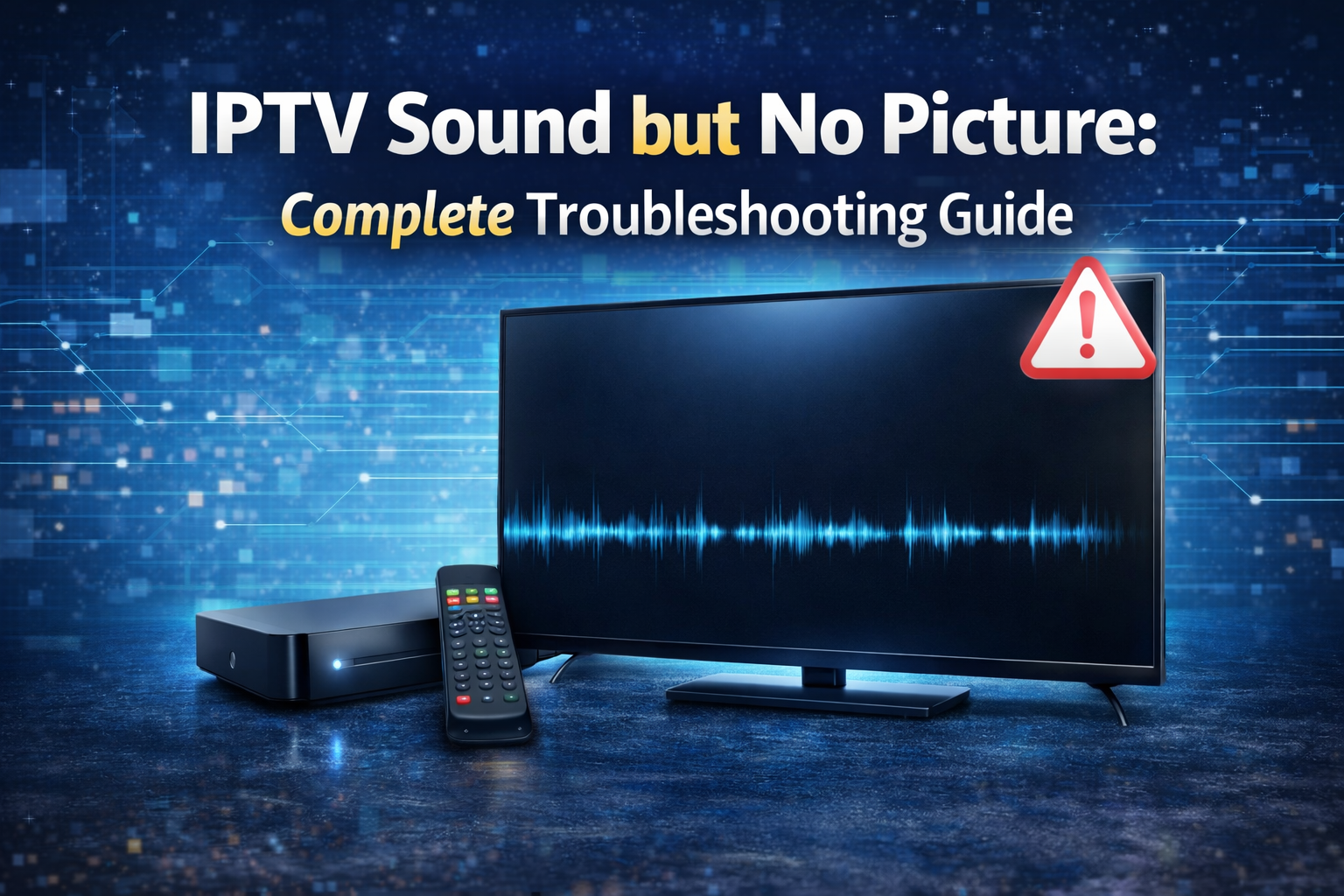
One of the most frustrating issues IPTV users face is IPTV sound but no picture. You switch to a channel, the audio plays clearly, but the screen remains black, frozen, or blank. This problem can happen on Android TV, Smart TVs, IPTV boxes, Firestick, smartphones, and even computers.
The good news is that this issue is very common and, in most cases, easy to fix. It rarely means that your IPTV service is broken, especially for users in IPTV Canada. Instead, it is usually caused by incorrect player settings, unsupported video codecs, device limitations, or temporary server issues.
In this complete guide, you will learn why IPTV sound works but video does not, how to fix it step by step, and how to prevent this problem from happening again in the future.
What Does “IPTV Sound but No Picture” Mean?
When IPTV plays audio but does not display video, it usually indicates that the stream is partially working, a situation that can occur even with the best IPTV Canada services. The audio data is being decoded correctly, but the video stream cannot be rendered on your device.
This IPTV sound but no picture situation often points to a mismatch between the video format and the device or player settings, rather than a total service failure.
Common Causes of IPTV Sound but No Picture
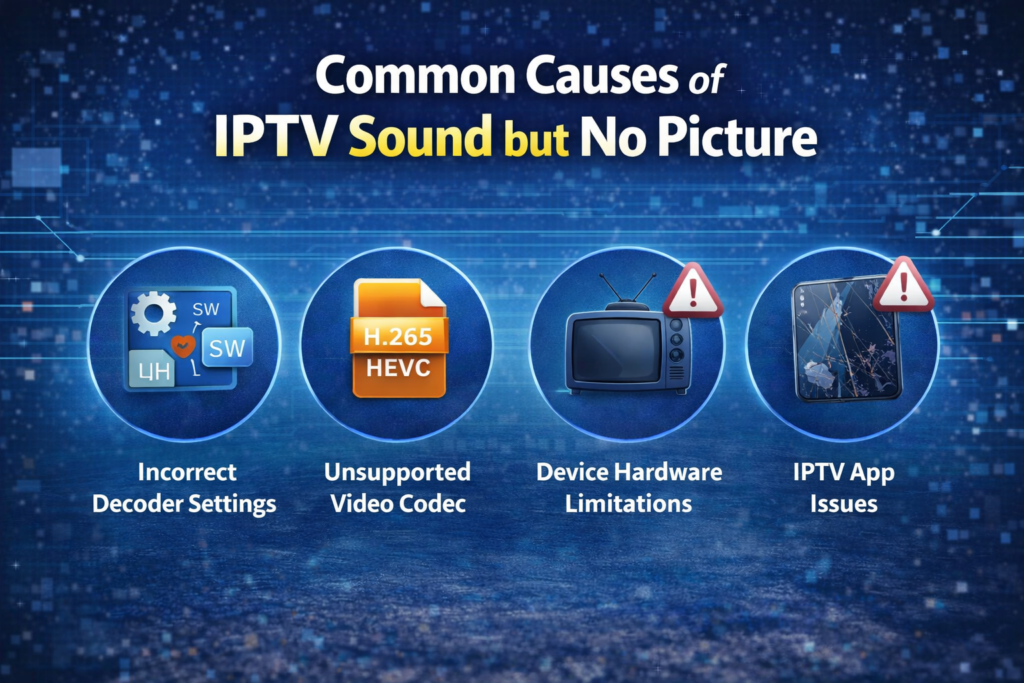
Incorrect Video Decoder Settings
The most common cause of IPTV sound but no picture is incorrect decoder configuration. Many IPTV players allow users to switch between hardware and software decoding, and the wrong choice can prevent video playback, even when using a valid IPTV subscription.
Unsupported Video Codec
Some IPTV channels use advanced codecs such as H.265 (HEVC). If your device does not support these codecs, you may hear sound without seeing any video.
Device Hardware Limitations
Low-end or older devices may struggle with HD or 4K streams. When this happens, the audio plays, but the video fails to load.
IPTV App Issues
Outdated apps, corrupted cache files, or buggy versions can cause IPTV sound but no picture even if your device is capable of playing the stream.
Server or Channel Problems
Sometimes the problem is not on your side. A specific channel may have a broken video stream while the audio continues to work normally.
Devices Commonly Affected
The IPTV sound but no picture problem can occur on:
- Android TV and Android TV boxes
- Firestick and Fire TV
- Smart TVs (Samsung, LG, Android TV)
- MAG boxes
- Smartphones and tablets
- Windows and Mac computers
The solution is similar across devices, although the settings menu may differ.
How to Fix IPTV Sound but No Picture (Step-by-Step)
Step 1: Change Video Decoder Settings
Hardware Decoder
- Uses the device’s GPU
- Best for newer devices
- More efficient for HD content
Software Decoder
- Uses the CPU instead of GPU
- Fixes many black screen issues
- Recommended if hardware decoding fails
What You Should Do
- Open your IPTV app
- Go to Settings → Player → Decoder
- Switch from hardware to software decoder (or vice versa)
- Restart the app
- Test the channel again
In most cases, this step alone fixes IPTV sound but no picture instantly.
Step 2: Try Another Channel
If only one channel has sound but no picture:
- Switch to a different channel
- If other channels work, the issue is server-side
- Wait or contact your IPTV provider
This helps confirm whether the issue is global or channel-specific.
Step 3: Restart the App and Device
Temporary memory issues can break video playback.
Recommended Restart Method
- Close the IPTV app completely
- Restart your device
- Reopen the app
- Test the stream again
This clears minor glitches that cause IPTV sound but no picture.
Step 4: Clear IPTV App Cache
Corrupted cache files often cause playback problems.
How to Clear Cache on Android Devices
- Go to Settings → Apps
- Select your IPTV app
- Click Clear Cache
- Restart the app
Avoid clearing data unless necessary, as it may remove login details.
Step 5: Update the IPTV App
Outdated IPTV apps may not support newer video formats.
Why Updates Matter
- Fix decoder bugs
- Improve compatibility
- Support new codecs
Always keep your IPTV player updated to avoid IPTV sound but no picture issues.
Step 6: Check Device Capabilities
Some devices cannot handle:
- H.265 / HEVC streams
- High-bitrate HD channels
- 4K content
What You Can Do
- Switch to SD or HD channels
- Avoid 4K streams
- Upgrade to a more powerful device
Step 7: Adjust Display and Aspect Ratio Settings
Incorrect display settings may hide the video output.
Recommended Settings
- Aspect ratio: Auto
- Disable forced zoom modes
- Match TV resolution
This step can resolve hidden video issues.
Step 8: Reinstall the IPTV App
If all fixes fail, reinstalling the app may solve the problem.
Reinstallation Steps
- Uninstall the IPTV app
- Restart the device
- Reinstall the app
- Re-enter IPTV credentials
IPTV Sound but No Picture on Popular IPTV Apps
Perfect Player IPTV
- Switch decoder mode
- Enable software decoding
- Restart after changes
TiviMate IPTV Player
- Adjust decoder per channel
- Disable unsupported features
- Restart the app
IPTV Smarters Player
- Disable hardware acceleration
- Clear cache
- Update the app
Internet Connection and Video Playback
Although internet speed mainly affects buffering, unstable connections can also cause IPTV sound but no picture.
Recommended Internet Speeds
- SD: 5 Mbps
- HD: 10–15 Mbps
- 4K: 25 Mbps or more
A wired Ethernet connection is always recommended for stability.
When the Problem Is Not on Your Side
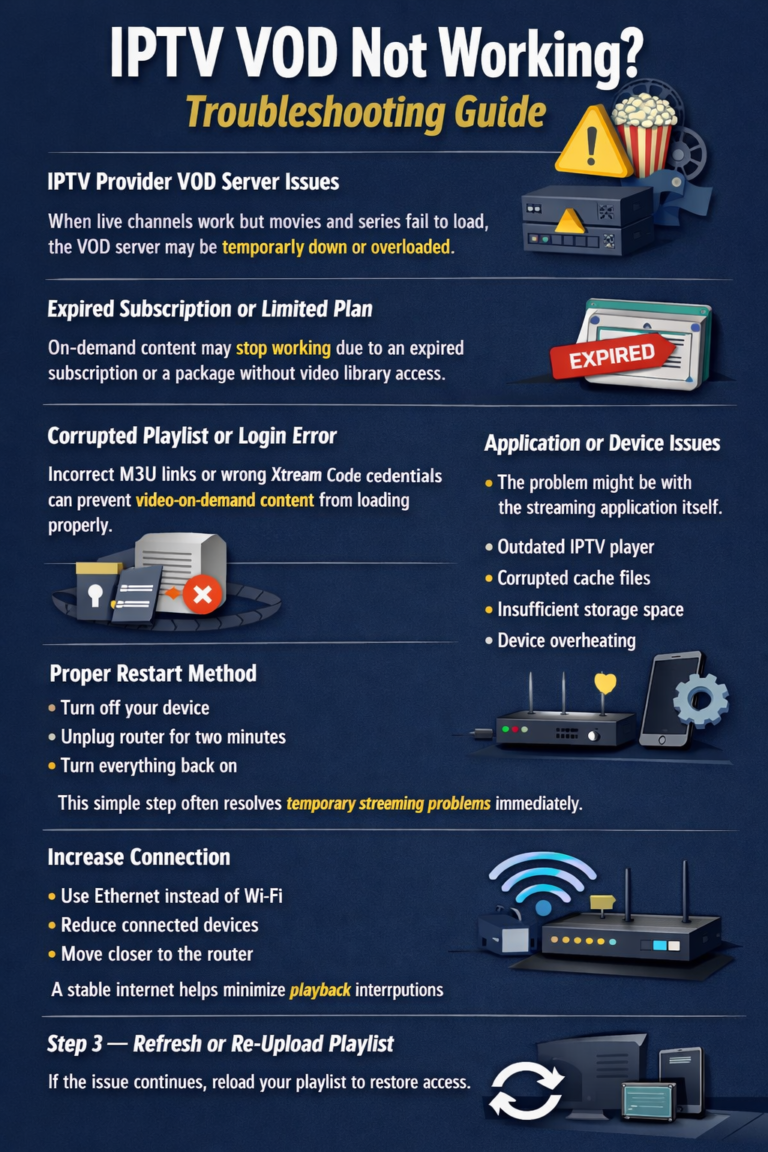
Sometimes IPTV providers experience:
- Server overload
- Broken video streams
- Temporary maintenance
If many users report the same issue, wait or contact support.
How to Prevent IPTV Sound but No Picture Issues
Best Practices
- Keep IPTV apps updated
- Use reliable IPTV services
- Restart devices regularly
- Avoid peak streaming hours
- Keep firmware updated
These steps reduce the chances of facing IPTV sound but no picture again.
Is IPTV Sound but No Picture a Serious Problem?
No. In most cases, this issue is minor and easy to fix. It rarely means your device or IPTV subscription is permanently broken.
Final Thoughts
The IPTV sound but no picture problem is one of the most common IPTV issues, but it is also one of the easiest to resolve. In most cases, switching decoder settings, restarting the app, or clearing cache restores video playback immediately.
By following the steps in this guide, you can quickly diagnose the cause and enjoy smooth IPTV streaming without black screens or missing video. With the right settings, a compatible device, and a stable IPTV service, this issue can be avoided almost entirely.