
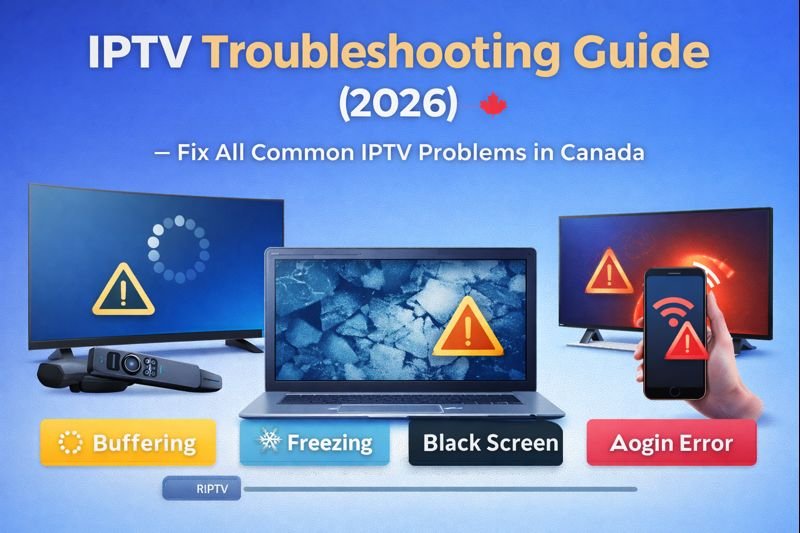
IPTV problems are very common in Canada, especially issues such as buffering, freezing, black screens, IPTV not working, or channels not loading. While IPTV is one of the most flexible and affordable ways to watch television, it depends heavily on internet quality, device setup, and IPTV service stability.
This IPTV troubleshooting guide explains how to fix all common IPTV problems step by step. Whether you are new to IPTV or an experienced user, this guide will help you diagnose issues quickly and restore smooth streaming in 2026.
How to IPTV Troubleshooting Guide: Problems (Start Here)
Before diving into specific IPTV errors, always start with these basic checks:
- Restart your IPTV app
- Restart your device
- Restart your modem and router
- Check your internet speed
- Confirm your IPTV subscription is active
Many IPTV problems are temporary and can be fixed with these simple actions.
IPTV Freezing and Buffering Issues
Freezing and buffering are the most reported IPTV problems in Canada.
Common causes:
- Slow or unstable internet connection
- Weak Wi-Fi signal
- IPTV server overload
- ISP throttling during peak hours
How to fix freezing and buffering:
- Use an Ethernet cable instead of Wi-Fi
- Close background apps using bandwidth
- Lower streaming quality if possible
- Restart the IPTV app
If IPTV freezes mostly at night, the problem is often related to your ISP.
IPTV Not Working – Complete Fix Guide
If IPTV stops working completely:
Check the following:
- Has your IPTV subscription expired?
- Are your login details correct?
- Is the IPTV app updated?
- Is your IPTV provider experiencing downtime?
Testing your IPTV subscription on another device helps identify whether the issue is app-related or service-related.
IPTV Black Screen Problem
A black screen usually means the stream is loading but video is not displayed.
Common reasons:
- Video decoder incompatibility
- Unsupported video format
- IPTV app configuration issues
Solutions:
- Change video player inside the IPTV app
- Enable software decoding
- Disable hardware acceleration
- Update or reinstall the IPTV app
Constant IPTV Buffering
If buffering happens constantly, not occasionally, the issue is usually network or server-related.
Fixes:
- Test internet speed during streaming
- Disconnect other devices from Wi-Fi
- Switch to wired internet
- Try another IPTV app
IPTV Has Sound but No Picture
This IPTV problem is often caused by video decoding issues.
How to fix:
- Switch from hardware decoder to software decoder
- Disable H.265 (HEVC) in app settings
- Change built-in video player
- Update the IPTV app
IPTV Channels Not Loading
If channels stay stuck on “loading” or don’t open:
Possible causes:
- Playlist not refreshed
- IPTV server overload
- Incorrect login credentials
Solutions:
- Refresh channels or playlist
- Restart the IPTV app
- Contact your IPTV provider if the issue continues
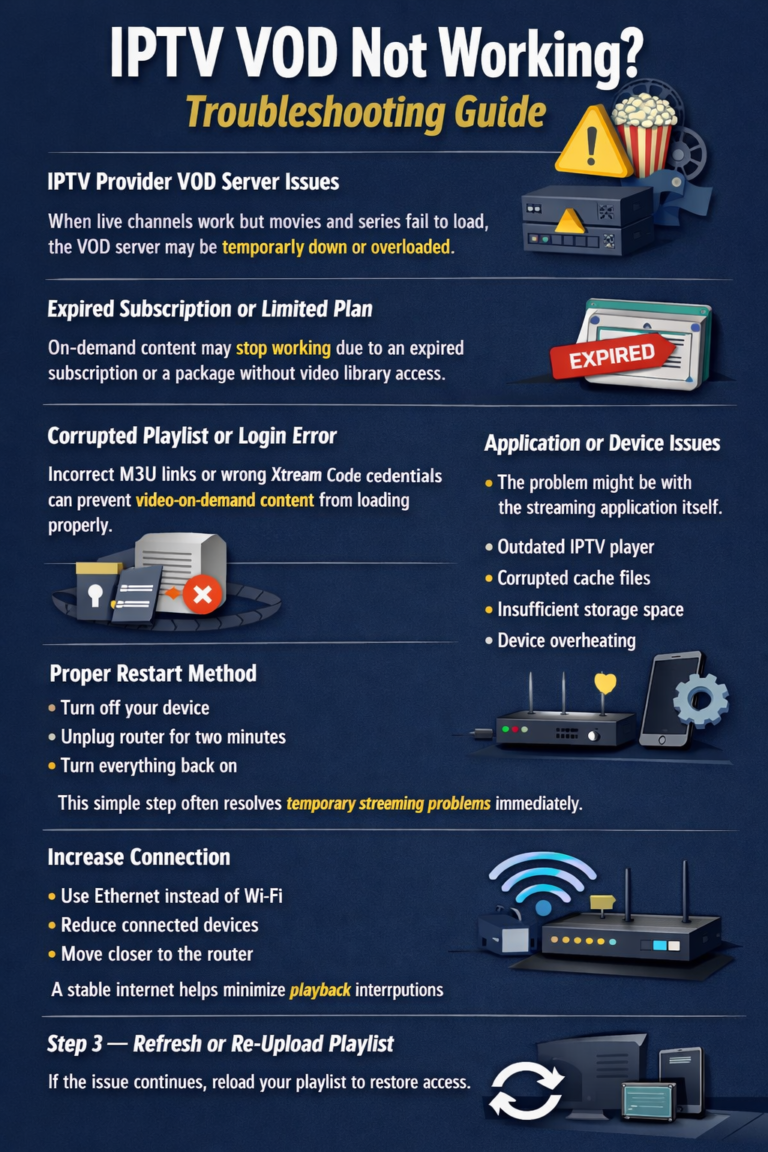
IPTV VOD Not Working
When live TV works but VOD does not, the problem is often server-side.
Fix steps:
- Clear IPTV app cache
- Reload playlist or VOD section
- Try another VOD title
- Test with a different IPTV app
IPTV M3U Error – How to Fix
M3U errors usually happen because of:
- Expired or incorrect M3U link
- Copy-paste mistakes
- Provider-side problems
How to fix M3U errors:
- Paste the M3U link again carefully
- Remove extra spaces
- Ask your provider for a new M3U playlist
IPTV Xtream Codes Error
Xtream Codes login errors are common and usually caused by incorrect details.
Fix:
- Double-check username, password, and server URL
- Remove “http://” or “https://” if required
- Test the login on another IPTV app
IPTV Slow at Night in Canada
This is a very common IPTV issue in Canada.
Why it happens:
- ISP throttling
- Network congestion
- Shared IPTV servers
What helps:
- Use Ethernet instead of Wi-Fi
- Change DNS settings
- Test IPTV with and without a VPN
- Stream during off-peak hours
IPTV Not Working on Wi-Fi
Wi-Fi problems are often mistaken for IPTV problems.
How to fix Wi-Fi issues:
- Move closer to the router
- Switch to 5GHz Wi-Fi
- Restart the router
- Avoid crowded Wi-Fi channels
For IPTV, wired internet is always more stable.
IPTV with VPN: Is It Necessary in Canada?
A VPN is not required, but it can help in some cases.
VPN can help when:
- Your ISP throttles IPTV traffic
- You experience routing problems
- You want extra privacy
VPN may cause problems if:
- The VPN is slow
- The server location is far from Canada
Always test IPTV with and without VPN.
How to Improve IPTV Stability
To avoid future IPTV problems:
- Use a reliable IPTV subscription
- Choose a stable IPTV app
- Keep devices updated
- Avoid weak Wi-Fi connections
- Don’t overload your network
How to Reset an IPTV App
Resetting the IPTV app fixes many hidden issues.
Steps:
- Clear app cache
- Clear app data
- Re-enter IPTV login details
- Reload playlist and EPG
This works well for IPTV Smarters, TiviMate, XCIPTV, and similar apps.
IPTV Issues Specific to Canada (ISPs & Throttling)
Some Canadian ISPs may:
- Throttle streaming traffic
- Slow connections at night
- Route IPTV traffic inefficiently
How to reduce ISP-related issues:
- Use reliable DNS
- Test different streaming times
- Use VPN selectively
- Upgrade internet plan if needed
When the IPTV Problem Is Not on Your Side
Sometimes the issue is caused by:
- IPTV server maintenance
- Temporary channel downtime
- Provider outages
Before changing your setup, confirm whether the issue affects other users.
Final Thoughts
Most IPTV problems in Canada can be fixed once the cause is identified. Buffering, freezing, black screens, login errors, and slow performance are usually related to internet quality, app configuration, or provider-side issues.
With the right troubleshooting steps, IPTV can remain stable, smooth, and enjoyable in 2026. Understanding how to fix common IPTV problems will save you time, frustration, and unnecessary provider changes.