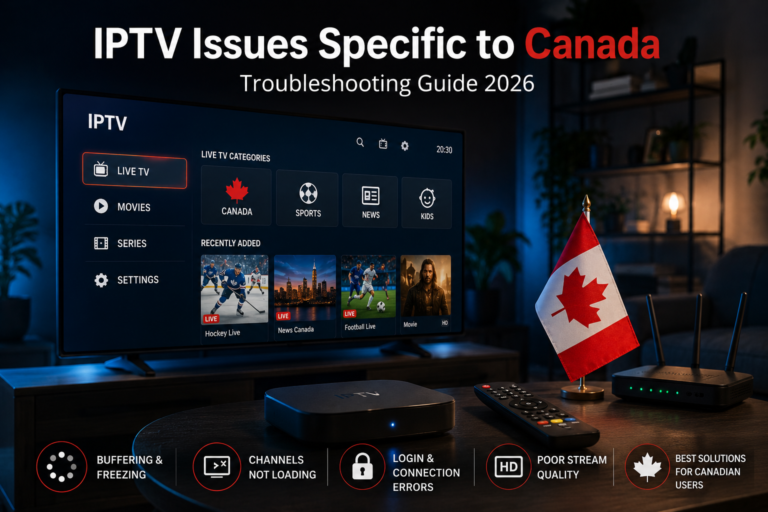


Streaming television through IPTV services has become a preferred alternative to traditional cable subscriptions. Users enjoy flexibility, global channels, and on-demand content. However, one issue that frequently interrupts this experience is the IPTV M3U Error. When this problem appears, playlists fail to load, channels disappear, or the application shows connection warnings.
If you are facing an IPTV M3U Error, this detailed guide explains what it means, why it happens, and how to fix it step by step without technical complications, especially for users of iptv canada services.
What Is an IPTV M3U Playlist?
Before understanding the IPTV M3U Error, it is important to know what an M3U playlist actually is.
An M3U file is a text-based playlist format that contains streaming links to television channels, movies, and series. IPTV players read this file and display the content inside the application interface, including services promoted as best iptv canada. Without a valid playlist, the streaming app cannot function properly.
When the system fails to access or read that file, it triggers what users commonly call an IPTV M3U Error.
What Causes IPTV M3U Error?
There are several technical and non-technical reasons why this issue may appear. Identifying the cause is the first step toward solving it efficiently, especially if the problem is related to your iptv subscription status or account access.
1. Incorrect Playlist URL
A small typing mistake can prevent the app from connecting to the server. Missing characters, extra spaces, or incomplete links are common reasons for an IPTV M3U Error.
2. Expired IPTV Subscription
If your subscription has expired, the server may block access to your playlist. In this situation, the app cannot authenticate your request.
3. Server Maintenance or Downtime
Sometimes the issue is not related to your device. IPTV providers may perform maintenance or experience temporary server overload.
4. Weak Internet Connection
A slow or unstable network can interrupt communication between your player and the IPTV server.
5. Application Compatibility Issues
Outdated IPTV applications may fail to process certain playlist formats correctly.
How to Fix IPTV M3U Error Quickly
Now let’s focus on practical solutions that can restore your streaming service.
Step 1: Recheck the Playlist Link
Carefully copy and paste the M3U URL again. Make sure:
- The link starts with http or https
- There are no spaces before or after the URL
- The full address is included
Many users fix the IPTV M3U Error simply by correcting the playlist link.
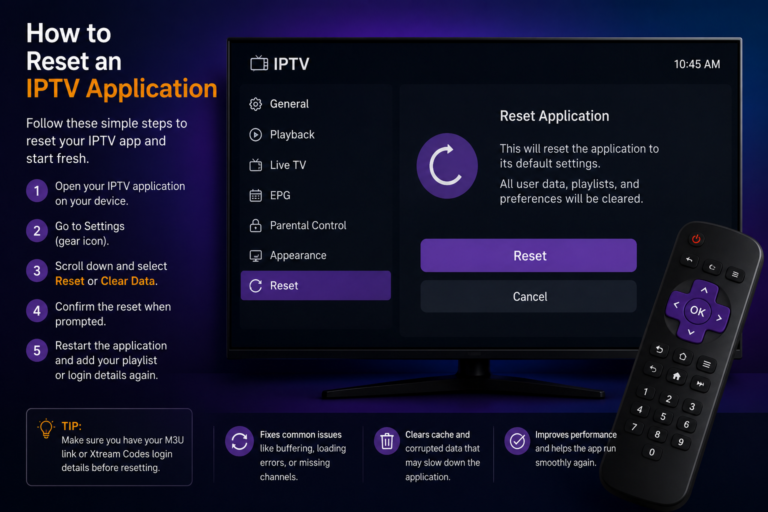
Step 2: Restart the IPTV Application
Close the app completely and reopen it. This refreshes the connection and clears temporary glitches that may block the playlist.
Step 3: Test Your Internet Speed
Run a speed test and confirm that your connection is stable. For smooth streaming:
- Minimum 10 Mbps for HD
- 25 Mbps or more for higher resolutions
Network instability often leads to loading failures.
Step 4: Confirm Subscription Status
Log in to your provider’s website or contact support to verify your account is active. If your subscription is inactive, renewal may instantly resolve the IPTV M3U Error.
Step 5: Update Your IPTV Player
Check if a newer version of your streaming app is available. Updates often fix compatibility bugs and playlist reading issues.
Advanced Troubleshooting Methods
If the problem persists, consider deeper technical checks.
Change DNS Settings
Switching to public DNS servers such as:
- 8.8.8.8
- 8.8.4.4
can improve connectivity and resolve access conflicts.
Disable VPN Temporarily
VPN services sometimes block IPTV domains depending on the server location. Turn off your VPN and test the playlist again.
Try the Playlist on Another Device
Testing the same link on a different device helps determine whether the issue is device-specific or server-related.
How to Prevent IPTV M3U Error in the Future
Avoiding the problem is always better than repeatedly fixing it.
Keep Your Subscription Updated
Set reminders before expiration dates.
Use Reliable IPTV Applications
Choose well-supported and regularly updated streaming apps.
Maintain Strong Network Stability
Whenever possible, use a wired Ethernet connection instead of Wi-Fi.
Save Backup Playlist Information
Keep your M3U link stored safely so you can re-enter it if needed.
Common Error Messages Related to IPTV M3U Error
Different apps may show variations such as:
- Playlist Failed to Load
- Invalid URL
- Authentication Error
- Server Timeout
Although the wording differs, they usually indicate connection or authorization problems.
Is IPTV M3U Error Permanent?
In most cases, the issue is temporary and easy to resolve. It rarely indicates serious damage to your device. With proper troubleshooting steps, users can restore access within minutes.
However, repeated issues may suggest:
- An unreliable IPTV provider
- Poor internet quality
- App compatibility limitations
Choosing stable services and maintaining your network properly reduces future interruptions.
When to Contact Technical Support
You should reach out to your IPTV provider if:
- The playlist fails on all devices
- Your account is active but access remains blocked
- Server outages last for an extended period
Sometimes backend adjustments are required to fix access permissions.
Final Thoughts
Facing an IPTV M3U Error can be frustrating, especially when you are ready to watch live channels or on-demand content. Fortunately, most causes are simple and manageable.
By verifying your playlist URL, checking subscription status, testing your internet connection, and keeping your app updated, you can eliminate most playback interruptions. Taking preventive measures will also reduce the chances of encountering the same issue again.
With the right setup and stable network conditions, your IPTV streaming experience can remain smooth, reliable, and interruption-free.