
Introduction
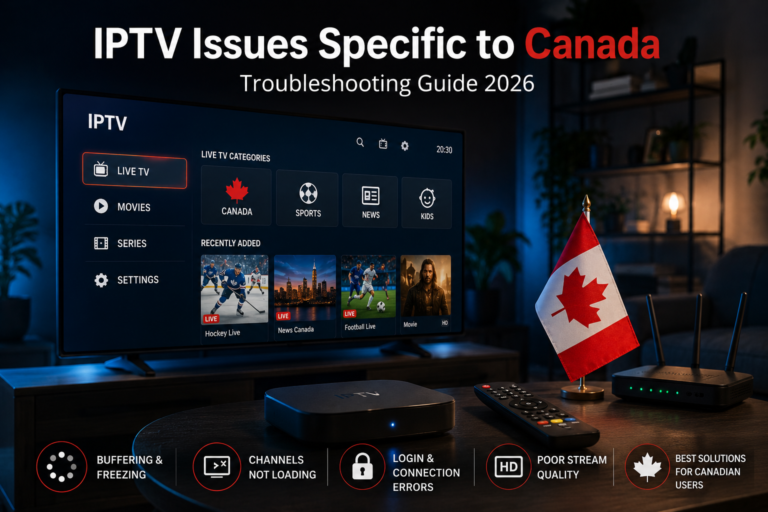
The IPTV Black Screen Problem is one of the most common and frustrating issues faced by IPTV users across Canada. Everything may seem normal: the IPTV app opens correctly, channels are listed, and the subscription is active — yet when you click a channel, all you get is a black screen with no video, sometimes with sound and sometimes without.
This issue affects many IPTV Canada users due to a mix of technical factors such as internet quality, device compatibility, ISP restrictions, and IPTV server overload. Whether you are watching live TV, sports, or VOD content, a black screen can quickly ruin the experience.
In this article, we will explore what causes the IPTV black screen problem, how to fix it step by step, and how Canadian users can prevent it from happening again.
What Is the IPTV Black Screen Problem?
The IPTV Black Screen Problem occurs when an IPTV stream fails to display video output even though the application itself is running, even for users subscribed to the best IPTV Canada services. Users may experience:
- A completely black screen
- Black screen with audio playing
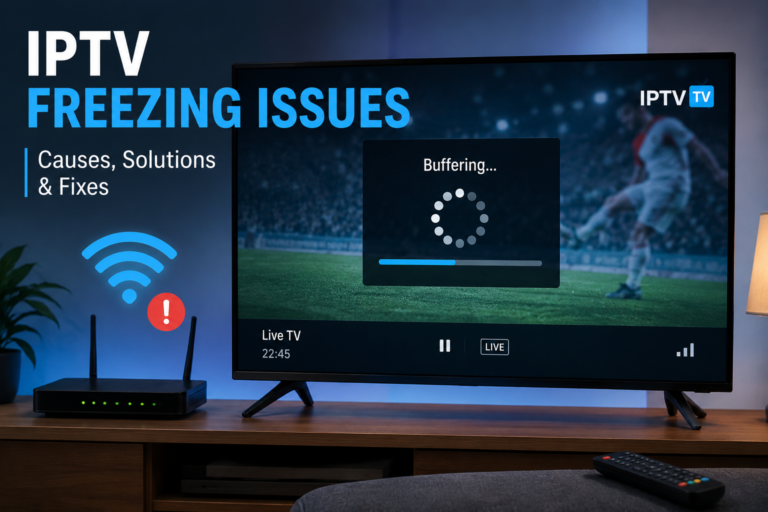
- Channels loading indefinitely
- Black screen only on certain channels
This problem can occur on multiple platforms, including:
- Smart TVs (Samsung, LG, Android TV)
- Amazon Fire Stick / Fire TV
- Android TV Boxes
- IPTV apps such as IPTV Smarters, TiviMate, XCIPTV
- Media players like VLC
Common Causes of IPTV Black Screen Problem in Canada
1. Internet Connection Issues
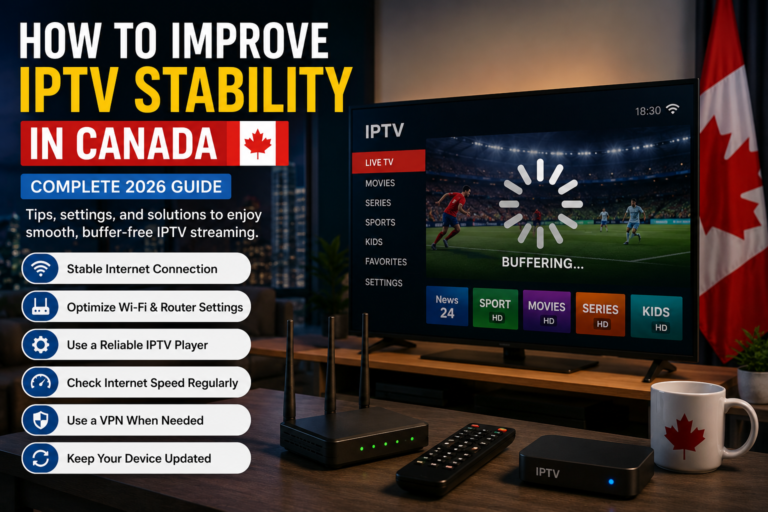
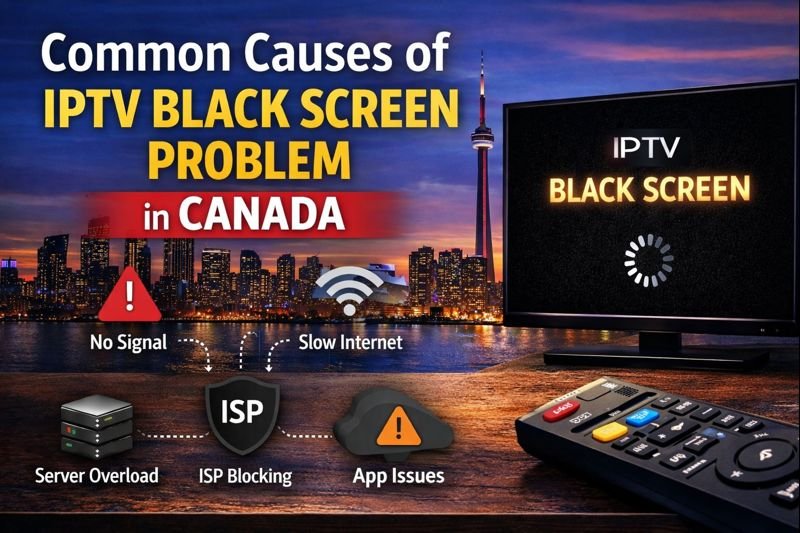
One of the leading causes of the IPTV black screen problem is unstable or slow internet connectivity, which can negatively impact any IPTV subscription. IPTV relies on real-time streaming, and even small drops in bandwidth can cause the video stream to fail.
Recommended internet speeds in Canada:
- SD streaming: minimum 5 Mbps
- HD streaming: at least 10 Mbps
- Full HD / 4K streaming: 20–30 Mbps or more
Wi-Fi congestion, especially in apartments or shared networks, can also contribute to black screen issues.
2. ISP Throttling or Blocking (Very Common in Canada)
Many Canadian Internet Service Providers (ISPs) are known to throttle or restrict IPTV traffic, especially during peak hours or major sporting events. This can result in IPTV channels loading but displaying a black screen.
Common signs of ISP interference include:
- IPTV works on mobile data but not home internet
- IPTV works only with a VPN enabled
- Channels stop working during evenings or weekends
3. IPTV App or Player Issues
An outdated or poorly optimized IPTV player can easily cause a black screen.
Common app-related causes:
- Old app version
- Corrupted cache
- Incompatible video decoder
- App not optimized for the device
Even popular IPTV apps like IPTV Smarters or TiviMate can show a black screen if not configured properly.
4. Unsupported Video Codecs
Some IPTV providers use advanced codecs such as:
- H.265 (HEVC)
- MPEG-TS
- HLS streams
Older TVs, Android boxes, or Fire Sticks may not fully support these codecs, leading to the IPTV black screen problem even though the stream itself is working.
5. IPTV Server Overload or Downtime
Not all IPTV services are created equal. During high-traffic events (NHL games, UFC, major soccer matches), IPTV servers may become overloaded.
When this happens:
- Channels may open with a black screen
- Streams may fail randomly
- Only certain channels are affected
This issue is common with cheap or overcrowded IPTV subscriptions.
6. DNS Configuration Problems
Incorrect DNS settings can prevent IPTV streams from loading properly in Canada.
Default ISP DNS servers may:
- Block certain IPTV domains
- Route traffic inefficiently
- Cause delayed stream resolution
This often results in a black screen rather than an error message.
How to Fix IPTV Black Screen Problem (Step-by-Step)
1. Restart Your Device and App
This simple step fixes more problems than most people expect.
- Close the IPTV app completely
- Restart your TV, Fire Stick, or Android box
- Reopen the app and test channels again
2. Check Other Channels
If only one or two channels show a black screen:
- Test multiple channels
- Try VOD content
- Ask another user of the same IPTV service
If the issue is widespread, the problem is likely on the server side.
3. Update or Reinstall Your IPTV App
Always use the latest version of your IPTV player.
- Update the app from the official store
- Clear cache and data
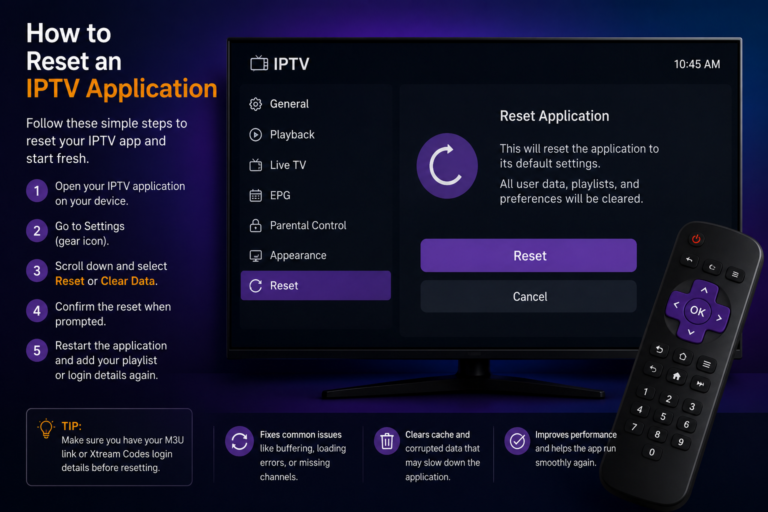
- If necessary, uninstall and reinstall the app
Outdated apps are a major cause of IPTV black screen issues.
4. Change Video Decoder Settings
Most IPTV apps allow you to change the video decoding method.
Try switching between:
- Hardware decoder
- Software decoder
This fix is especially effective for black screen issues with sound but no video.
5. Change DNS Settings
Using a reliable public DNS often fixes IPTV streaming issues in Canada.
Recommended DNS servers:
- Google DNS: 8.8.8.8 / 8.8.4.4
- Cloudflare DNS: 1.1.1.1 / 1.0.0.1
Apply DNS changes directly on your device or router if possible.
6. Use a High-Quality VPN (If Necessary)
If your ISP is blocking IPTV traffic, a premium VPN can solve the black screen problem.
Best practices for Canadian users:
- Choose a fast VPN with Canadian or nearby servers
- Avoid free VPNs
- Use modern protocols like WireGuard
A VPN should improve stability, not reduce speed.
7. Contact Your IPTV Provider
If none of the above solutions work:
- Contact IPTV support
- Ask about server status
- Request a test link or alternate server
A reliable IPTV provider should respond quickly and transparently.
How to Prevent IPTV Black Screen Problem in the Future
1. Choose a Reliable IPTV Provider
Avoid extremely cheap IPTV subscriptions. Look for providers with:
- Stable Canadian servers
- Good customer support
- Load-balanced infrastructure
- Regular maintenance
2. Use Modern Streaming Devices
For best IPTV performance:
- Android TV (newer models)
- Amazon Fire Stick 4K / 4K Max
- Modern Smart TVs with updated firmware
Old hardware struggles with modern codecs.
3. Keep Everything Updated
Regularly update:
- IPTV apps
- Device firmware
- Operating system
Updates often include fixes for streaming and compatibility issues.
4. Optimize Your Home Network
- Use Ethernet instead of Wi-Fi when possible
- Place router close to device
- Avoid heavy downloads while streaming IPTV
Network stability is critical for IPTV.
Frequently Asked Questions (FAQ)
Why do I get sound but no picture on IPTV?
This is usually caused by an unsupported video codec or incorrect decoder settings.
Does IPTV black screen mean my subscription is expired?
No. In most cases, it is a technical issue, not an account problem.
Is IPTV legal in Canada?
IPTV legality depends on content licensing. Always use reputable providers and understand local regulations.
Conclusion
The IPTV Black Screen Problem is a common but solvable issue for Canadian users. Whether the cause is ISP throttling, app configuration, device limitations, or server overload, understanding the root of the problem is the key to fixing it quickly.
By following the solutions outlined in this guide and choosing the right IPTV setup, you can enjoy smooth, uninterrupted streaming without black screens — even during peak viewing times.